EN|中文

Publish a port. Let authorized users connect.

MTCode Server and mtserver-cli make an existing TCP service available through DirectLink. MTCode Portal and mtportal-cli discover every service a user is authorized to access, assign a local port, and open the right client.

Download See the workflow

Server and client, designed together

Any TCP service becomes a simple, named destination

Keep the service where it already runs—on a workstation, server, or private network. The publishing side identifies its local port and protocol. The portal side handles discovery, authorization, local port mapping, and launch, so users do not need the server address or an exposed inbound port.

Any TCP servicePublish web apps, SSH, Ollama, databases, device consoles, or your own protocol.
A few settingsName the service, select its local port and protocol, and start publishing.
One service listAfter sign-in, authorized services from every account and computer appear together.
Stable local endpointsAutomatic mappings avoid conflicts; pinned ports make existing client configuration reusable.

mtserver-cli

Publishing can be one command.

The terminal program is mtserver-cli. Pass a server name, listening port, and protocol on the command line, or save the same values in a configuration file. Add --command when you also want it to start and supervise the service process.

Run unattendedUse --start to publish immediately. Credentials can come from secure storage or environment variables, and logging can be directed to a file.
Publish more than one serviceRun one instance per service, each with its own configuration file and listening port. A single computer can publish as many independent services as it needs.
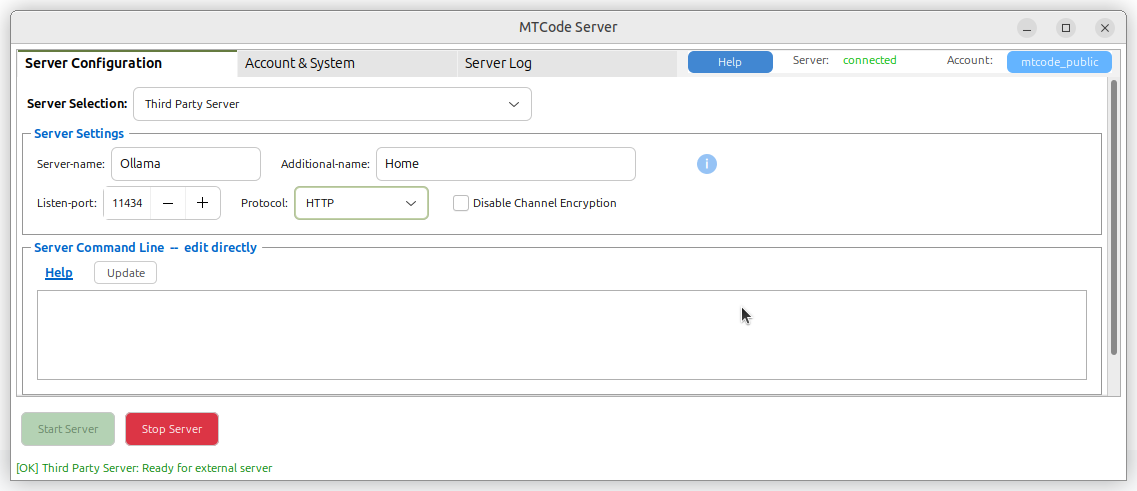
Prefer a GUI?The MTCode Server desktop program provides the same third-party TCP-service publishing role with forms for the service, protocol, port, and launch command.
# Publish an Ollama server that is already running
mtserver-cli --server-name "Ollama" --listen-port 11434 --protocol HTTP --start

# Start and publish a Python web server for the user's Pictures folder
mtserver-cli --server-name demo:Pictures --listen-port 8080 --protocol HTTP --command "python3 -m http.server 8080 --directory /home/demo/Pictures" --start
MTCode Server desktop interface configured to publish an SSH service

Use the desktop interface for guided setup, or mtserver-cli for a compact terminal and service-friendly workflow.

The complete path

From a private listening port to the user’s usual application

DirectLink carries the connection while the server and portal tools take care of the service-specific details at each end.

1. Service listensKeep the TCP service on its existing local port.
2. Server publishesMTCode Server or mtserver-cli registers the named service.
3. User signs inThe portal retrieves every authorized service.
4. Port maps locallyA unique localhost port is created automatically.
5. Client opensA click or keystroke launches the browser, terminal, or other client.

The service stays private. The workflow does not require a public server address, inbound port forwarding, or a VPN. Access is granted to the named service instead of exposing the whole computer or network.

MTCode Portal and mtportal-cli

Sign in once. See every service you can use.

Choose the interface that fits the user. Both clients discover the same authorized services and use the same local mapping settings.

MTCode Portal

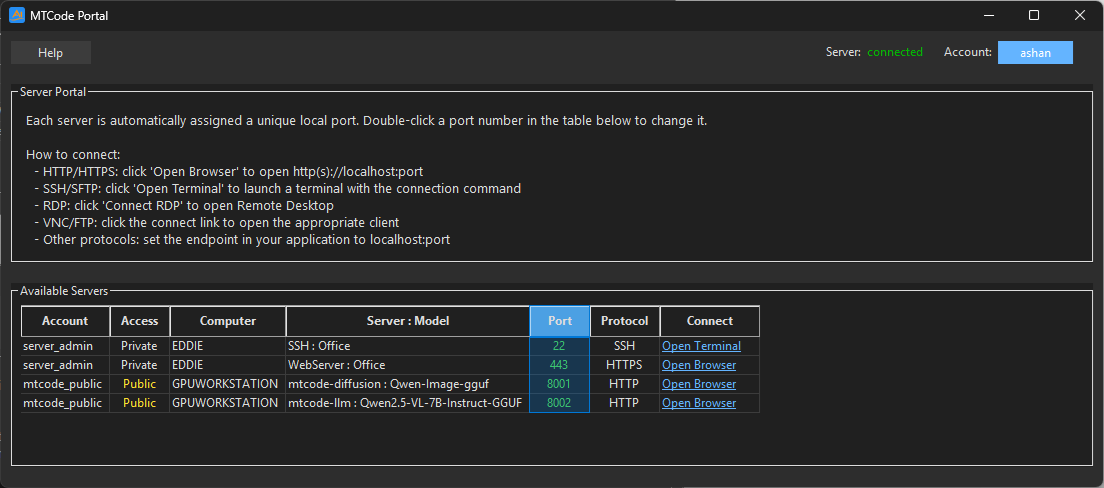
The desktop GUI groups services by account and computer and shows each protocol and local port. One click connects, opening HTTP services in a browser, SSH or SFTP in a terminal, and supported desktop protocols in their matching client. Double-click the displayed port to change that service’s local port mapping. The local address is always available for another application.

mtportal-cli

The keyboard-driven terminal program lists the same account, computer, service, protocol, port, and connection information. Select a service to launch or copy its connection, and change a mapping without leaving the terminal.

MTCode Portal showing authorized services and their local port mappings

Authorized services appear in one interface. Each receives an available local port and a protocol-aware connection action.

Predictable local ports

Automatic by default. Fixed when an application expects it.

The portal normally chooses a unique available port for every service, avoiding collisions when many remote computers expose the same standard port. When a local client expects a particular endpoint, pin that service to a port of your choice.

Keep an existing client configurationPin an Ollama service to localhost:11434, for example, and software already configured for Ollama’s default endpoint can connect through DirectLink.
The choice persistsUser-selected mappings are saved in settings.json. The same specific service receives the same local port the next time the portal starts.
GUI and CLI stay in syncMTCode Portal and mtportal-cli use the same settings store, so a mapping selected in one interface is available in the other.
Settings follow the operating systemThe file lives under AppData on Windows, Application Support on macOS, and the XDG configuration directory (normally ~/.config) on Linux.

Bring the TCP services you already use.

Publish with a compact CLI or a desktop GUI. Give users one portal where every authorized service opens through a stable local address.